I Built an AI Email Triage System in 15 Minutes (Saves Me 5 Hours/Week)
This case file is produced by Fragment Zero's editorial team. Original research, sourcing, and narrative analysis are performed by human editors. Voiceover is synthesized; visual illustrations are AI-generated. Every factual claim is cited to public documents, peer-reviewed publications, or named primary sources. See methodology and disclaimer.
I Built an AI Email Triage System in 15 Minutes (Saves Me 5 Hours/Week)
I haven't manually triaged an email in six months. A workflow built in Make.com sorts every incoming message into one of three buckets, then takes the right action without me touching it. Today I'm building it with you, in fifteen minutes.
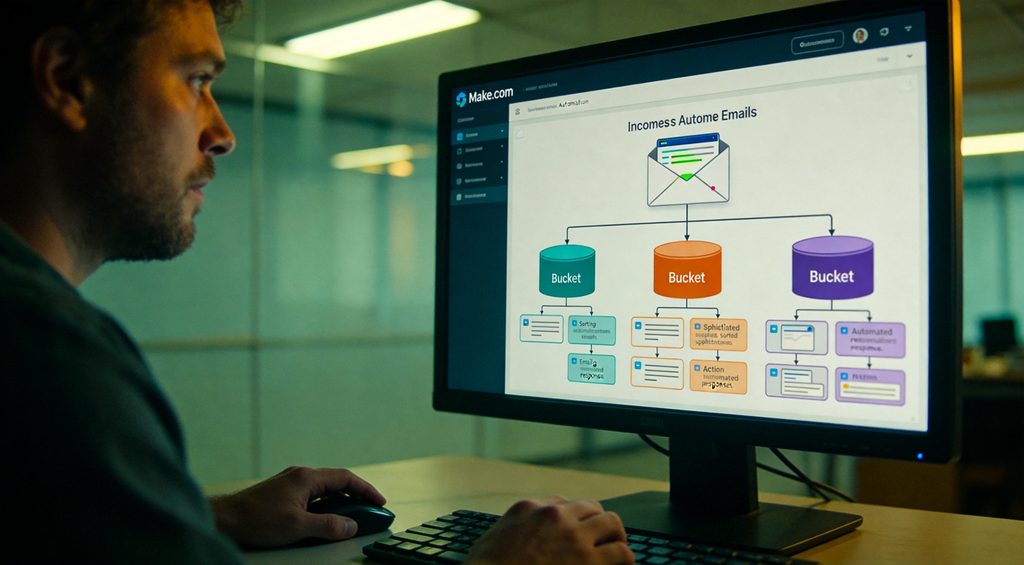
Here's the picture. A new email arrives. Make.com grabs it, sends the subject line and body to ChatGPT with one specific prompt. ChatGPT returns one word: lead, support, or noise. Based on that word, three different actions fire. Lead goes to Notion and pings me on Slack. Support gets a draft reply waiting in my inbox. Noise gets archived without me ever seeing it. Total build time today: fifteen minutes. Time saved: about five hours every week. Let's go.

Step one, the trigger. Open Make.com, click Create new scenario. Search for Gmail in the module list, click it, choose Watch emails. Connect your Gmail account if you haven't already. Now the settings. Folder: Inbox. Mark messages as read: no, we want them untouched until our workflow decides what to do. Limit: ten, so it processes ten emails per run. Filter: add one filter, is unread, so we don't reprocess things. Click OK. The trigger is done. Next we need the classifier, the brain that decides what kind of email each one is.

Step two, the classifier. Click the plus icon to add a module. Search for OpenAI, choose Create a completion. If you haven't connected OpenAI yet, you'll need an API key, one-time setup, two minutes. In the model dropdown, pick gpt-4o-mini. It's cheap and fast, we don't need the heavy model for this. Now the prompt, paste this exactly: Read this email and respond with one word only: lead, support, or noise. Lead means a sales inquiry or a real business opportunity. Support means an existing customer with a question or issue. Noise means newsletter, promotion, automated notification, or anything else. Email subject: subject. Body: body. Map the subject and body fields from the Gmail trigger. Save.

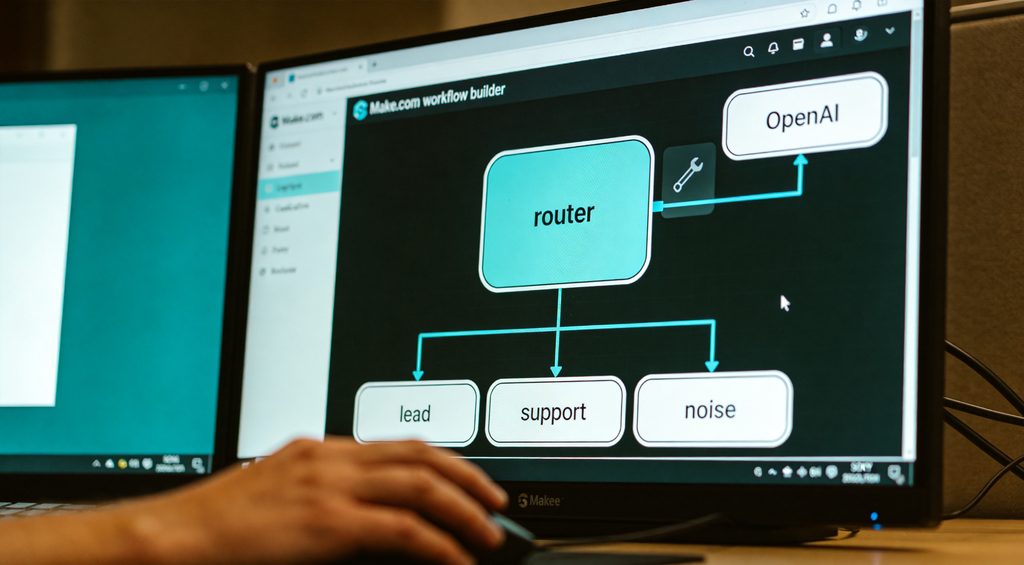
Step three, the router. The router is what makes Make.com powerful. Click the wrench icon on the connector after OpenAI, choose Add a router. Three branches will fan out from it. On each branch we set a filter, that's the condition for taking that path. First branch: filter where the OpenAI response equals lead. Second branch: equals support. Third branch: equals noise. This is the decision tree. From here, the email gets sent down exactly one path based on what ChatGPT decided. Now we wire up what happens on each branch.
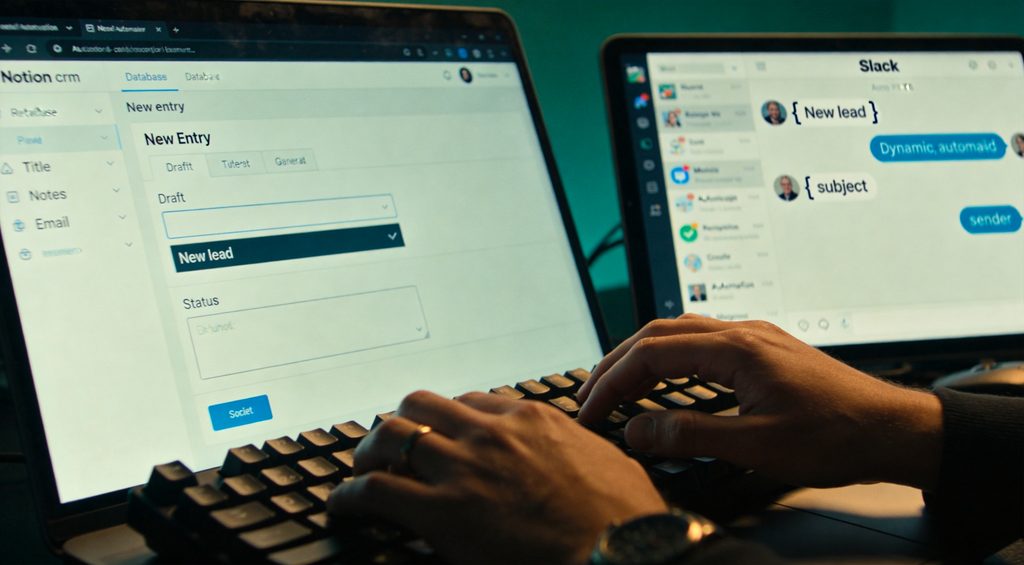
Step four, the lead branch. This is the high-value path. On the lead branch, add two modules. First, Notion, Create a database item. Connect your Notion, pick your CRM database, and map the fields. Subject from Gmail goes to Title. Body goes to Notes. Sender email goes to Email. Set Status to New lead. Save. Second module on the same branch: Slack, Send a message. Pick your channel, write the message: New lead just hit the inbox plus the subject and sender. Map those fields. Save. Now when ChatGPT classifies an email as a lead, two things happen automatically, a CRM entry is created and I get pinged. Time from email arriving to me knowing about it: about three seconds.
Step five, the support branch. On this branch I don't want full automation, because customer support requires my actual judgment. So instead of replying directly, the workflow drafts a reply that sits in my inbox waiting for me to review. Add a Gmail module, Create a draft. To: map the sender email. Subject: Re plus the original subject. Body: I send another OpenAI call here that takes the email content and writes a friendly first-draft response based on a template. The draft sits in my drafts folder. I open it, edit if needed, hit send. Twenty seconds of work instead of three minutes of starting from scratch.

Step six, the noise branch. This one is the simplest. Add a Gmail module, Modify a message. Map the message ID from the trigger. Set Add labels to a label I created called Noise and Mark as read to yes. That's it. Newsletters, sales pitches, automated notifications, all of them get archived to the Noise label without ever showing up in my main inbox. I never see them. They never break my focus.

Step seven, test it. Click Run once at the bottom of Make.com. Send yourself a test email, try one obvious lead, one support question, one promo. Watch the modules light up green as the email flows through. Three common errors. One, OpenAI returns more than one word. Fix: add Reply with ONE WORD only, no punctuation, no explanation twice in the prompt. Two, the router branches don't fire. Fix: check that your filter values are lowercase exactly matching lead, support, and noise. Three, you hit the Make free tier limit. Fix: the Pro plan is twenty-nine dollars a month. For five hours a week back, do the math.

Three ways to extend this once you have the base running. One, replace the OpenAI module with Claude. Same idea, different model. I prefer Claude for nuance when the email is ambiguous. Two, add a fourth branch for VIPs. If the sender is on a list of important people, route to a separate priority Slack channel that pings me even on weekends. Three, connect this workflow to your custom GPTs from the last video. Instead of generic OpenAI calls in Make, you can hit a specific GPT trained on your support style or your sales voice. The base scenario is the foundation. Everything else compounds on top of it.

The full Make.com blueprint is in the description. You can import it directly into your account, file, import, paste the JSON. Twenty seconds. Subscribe because next video I'm building the trigger that pulls leads from a custom GPT inside Notion automatically. That's the loop where the AI generates the lead, my workflow processes it, and the CRM updates without me ever touching it. See you there.